Grafana pdc-agent as a Service
Introduction
This guide will provide instructions on how to set up a Grafana pdc-agent as a service in Ubuntu 24.04
- What is a pdc-agent?
Get pdc-agent Credentials
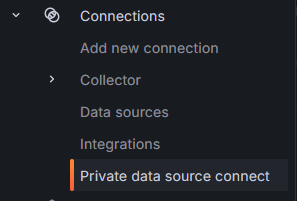
In Grafana, open up the side menu and select "Private data source connect"
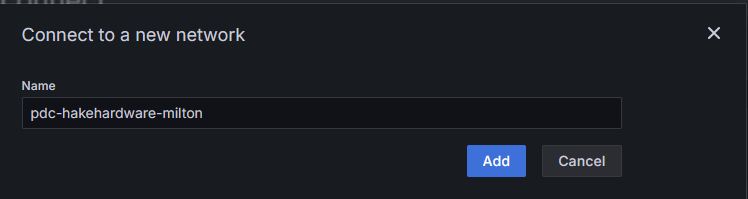
If the network does not already exist, select "Add new network". Then provide a name
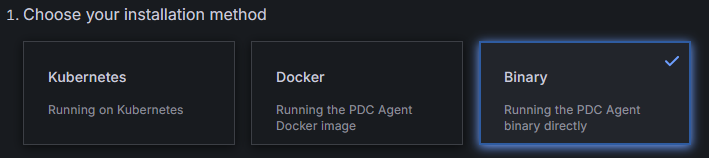
Select the "Binary" option
Click the button to create a token. A token will be generated, scroll down to step 3 and find the section that states "Run the binary". Copy the command into a notepad, this will be needed for later.
Download the pdc-agent
Navigate to the pdc-agent Download Page and locate the release with the "Latest" tag. At the time of this wiki the latest version is pdc-agent_Linux_x86_64.tar.gz and it will be used as an example in future commands within this wiki.
Download
Download the latest version to the home directory
wget -P ~/ https://github.com/grafana/pdc-agent/releases/download/v0.0.36/pdc-agent_Linux_x86_64.tar.gz
Extract
Extract the downloaded file
tar -xvf ~/pdc-agent_Linux_x86_64.tar.gz
Move the extracted files
sudo mv ~/pdc-agent_Linux_x86_64/pdc /usr/local/bin/pdc
Prepare Executable
Make executable
Make the pdc binary executable
sudo chmod +x /usr/local/bin/pdc
Clean Up
Delete the tar.gz file
rm -rf ~/pdc-agent_Linux_x86_64*
Set Permissions
Set permissions
sudo chown -R $USER:$USER /usr/local/bin/pdc
Credentials
Create Environmental Variables
Create a file to store sensitive values as environmental variables
sudo nano /etc/default/pdc-agent
Add Credentials
Open the notepad that you saved the command from earlier. Paste in the values provided by Grafana for your pdc-agent. Then press ctrl + x, then y, then enter to save.
GCLOUD_PDC_SIGNING_TOKEN="your_signing_token_here"
CLUSTER="your_cluster"
GCLOUD_HOSTED_GRAFANA_ID="your_grafana_id"
-tokenis the GCLOUD_PDC_SIGNING_TOKEN-clusteris the CLUSTER-gcloud-hosted-grafana-idis the GCLOUD_HOSTED_GRAFANA_ID
Create the Service
Open with Nano
Use nano to create a pdc-agent.service file
sudo nano /etc/systemd/system/pdc-agent.service
Add the Configuration
Add the following configuration, then press ctrl + x, then y, then enter to save.
[Unit]
Description=PDC Agent
After=network.target

[Service]
Type=simple
EnvironmentFile=/etc/default/pdc-agent
ExecStart=/usr/local/bin/pdc -token $GCLOUD_PDC_SIGNING_TOKEN -cluster $CLUSTER -gcloud-hosted-grafana-id $GCLOUD_HOSTED_GRAFANA_ID
Restart=always

[Install]
WantedBy=multi-user.target
Start the Service
Reload
Reload the daemon
sudo systemctl daemon-reload
Start
Start the service
sudo systemctl start pdc-agent
Enable
Enable the service
sudo systemctl enable pdc-agent
Verify
Verify the service is running
sudo systemctl status pdc-agent
Connect to Grafana
Now go back to the "Private data source connect" page in Grafana. Click "Test agent connection". The "agents connected" should now state "1".
Add Prometheus Data Source
Now that Grafana is connected to the local pdc-agent Prometheus can be added as a data source if it is already configured. If it has not been configured yet it can be installed as a service
In the menu select "Data Sources".
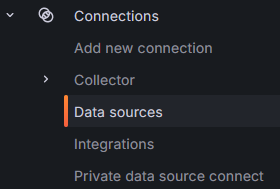
Select "Add new data source". Then select "Prometheus". Set the "Name" for the data source.

Enter in http://<YOUR IP>:9090 as the Prometheus server URL. Where it says <YOUR IP> use the internal IP for the PC running the pdc-agent. This can be found with ip a.

Scroll all the way to the bottom and click the dropdown for "Private data source connect" and choose the data source you just set up.
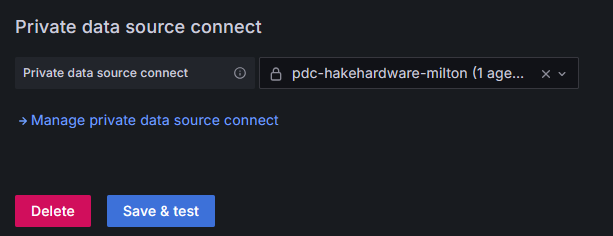
Then click "Save & Test". You should receive a success message
